
The Ultimate Website Caching Guide: Boost Hosting Performance 300%

Website loading speed is no longer just a technical concern it's a critical factor that directly impacts your search rankings, conversion rates, and user experience. One of the most effective ways to dramatically improve your site's performance is through proper caching implementation.
If you're frustrated with slow page loads, high bounce rates, or poor Core Web Vitals scores, this comprehensive guide will walk you through implementing effective caching strategies regardless of your hosting environment. We'll cover everything from browser caching to server-level optimizations that can reduce load times by up to 300%.
Why Caching Matters in 2026: Google's Page Experience update has made site speed a direct ranking factor. Studies show that a 1-second delay in page load time can reduce conversions by 7%. Proper caching addresses this by storing frequently accessed resources closer to your users.
Key Takeaways
- •Implementing proper caching can improve site speed by 200-300%
- •Browser caching reduces repeat visits load times by storing assets locally
- •Server-side caching includes OPcache, Object Caching, and CDN integration
- •WordPress users benefit from plugin-based caching like WP Rocket or W3 Total Cache
- •Regular cache validation and purging prevents stale content issues
- •CDNs distribute cached content globally for faster international access
- •Monitoring tools help identify caching effectiveness and areas for improvement
Understanding Caching Fundamentals
Before diving into implementation, it's crucial to understand what caching is and how it works. At its core, caching involves storing copies of files or data in a temporary storage location (cache) so future requests for that data can be served faster.
Types of Caching Layers
- Browser Caching: Stores static assets (CSS, JavaScript, images) on the user's device
- Server-Side Caching: Includes OPcache (PHP bytecode), Object Caching (database queries), and Page Caching (full HTML pages)
- CDN Caching: Distributes cached content across global edge servers
- Database Caching: Stores frequent query results to reduce database load
Step 1: Implement Browser Caching via .htaccess
Browser caching is the first layer of defense against slow load times. By setting proper cache-control headers, you instruct browsers how long to store your static assets before checking for updates.
Apache/.htaccess Configuration
Add the following code to your .htaccess file to enable browser caching for different file types:
# Enable browser caching
        <IfModule mod_expires.c>
        ExpiresActive On

        # Images
        ExpiresByType image/jpg "access plus 1 year"
        ExpiresByType image/jpeg "access plus 1 year"
        ExpiresByType image/gif "access plus 1 year"
        ExpiresByType image/png "access plus 1 year"
        ExpiresByType image/webp "access plus 1 year"
        ExpiresByType image/svg+xml "access plus 1 year"
        ExpiresByType image/x-icon "access plus 1 year"

        # CSS, JavaScript
        ExpiresByType text/css "access plus 1 month"
        ExpiresByType text/javascript "access plus 1 month"
        ExpiresByType application/javascript "access plus 1 month"

        # Fonts
        ExpiresByType font/ttf "access plus 1 year"
        ExpiresByType font/otf "access plus 1 year"
        ExpiresByType font/woff "access plus 1 year"
        ExpiresByType font/woff2 "access plus 1 year"

        # HTML (shorter cache for dynamic content)
        ExpiresByType text/html "access plus 2 hours"
        </IfModule>

        # Enable compression
        <IfModule mod_deflate.c>
        AddOutputFilterByType DEFLATE text/html text/plain text/xml text/css text/javascript application/javascript
        </IfModule>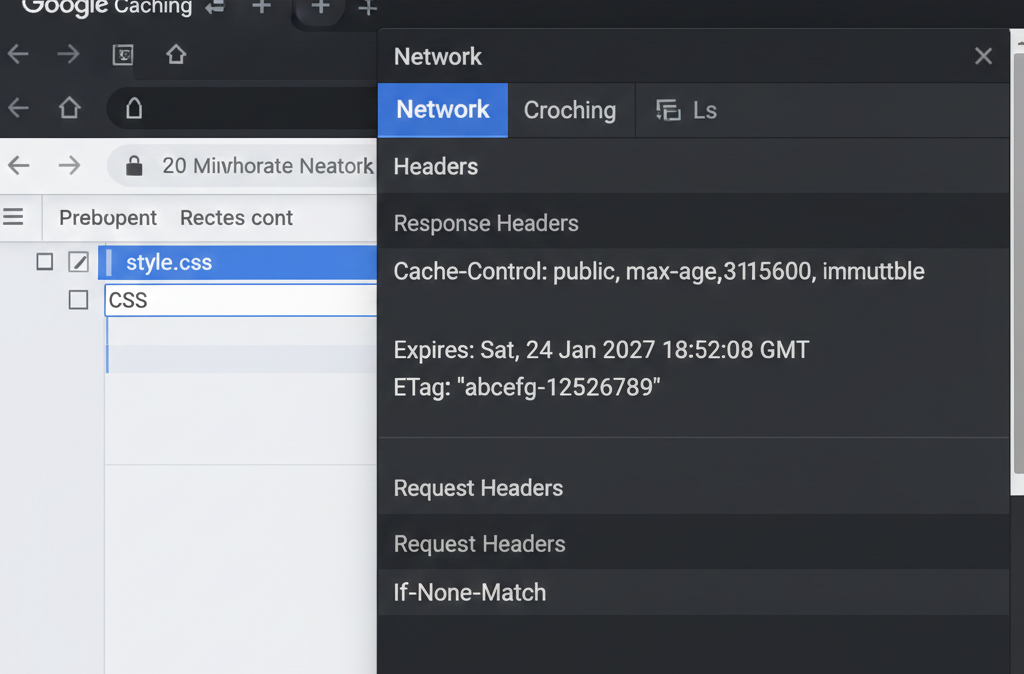
Verification: After implementing, use Chrome DevTools → Network tab to check that your static assets show "from disk cache" on repeat visits and have appropriate cache-control headers.
Step 2: Configure Server-Side Caching
Server-side caching reduces processing load by storing compiled PHP, database results, or complete HTML pages. The implementation varies by hosting environment and CMS.
OPcache for PHP Performance
OPcache stores precompiled PHP script bytecode in shared memory, eliminating the need for PHP to load and parse scripts on each request. Enable it in your php.ini:
[opcache]
opcache.enable=1
opcache.memory_consumption=128
opcache.interned_strings_buffer=8
opcache.max_accelerated_files=10000
opcache.revalidate_freq=2
opcache.fast_shutdown=1
opcache.enable_cli=1
; For production servers
opcache.validate_timestamps=0
; For development servers
; opcache.validate_timestamps=1
Note: Set opcache.validate_timestamps=0 on production servers for maximum performance, but remember to manually clear OPcache when deploying updates.
Redis/Memcached for Object Caching
For database-intensive sites (like WordPress with WooCommerce), implement Redis or Memcached to cache database query results:
Redis Installation (Linux)
sudo apt update
sudo apt install redis-server php-redis
sudo systemctl enable redis-server
sudo systemctl start redis-server
WordPress Configuration
// Add to wp-config.php
define('WP_REDIS_HOST', '127.0.0.1');
define('WP_REDIS_PORT', 6379);
define('WP_REDIS_TIMEOUT', 1);
define('WP_REDIS_READ_TIMEOUT', 1);
// Optional: specify database
define('WP_REDIS_DATABASE', 0);
Step 3: Advanced WordPress Caching Strategies
WordPress powers over 40% of all websites, making WordPress-specific caching strategies particularly valuable. While caching plugins simplify implementation, understanding what happens behind the scenes helps optimize further.
Choosing the Right Caching Plugin
| Plugin | Best For | Key Features | Performance Impact |
|---|---|---|---|
| WP Rocket | Beginners, Premium users | Page caching, Browser caching, Lazyload, Database optimization | High (30-50% improvement) |
| W3 Total Cache | Advanced users, Developers | Full caching stack, CDN integration, Minification | Very High (with proper config) |
| LiteSpeed Cache | LiteSpeed server users | Server-level caching, QUIC.cloud CDN | Extreme (with LiteSpeed) |
Optimal WP Rocket Configuration
For most sites, WP Rocket provides the best balance of power and usability. Here's an optimal configuration:
- Page Cache: Enable with default settings
- Cache Lifespan: Set to 10 hours for most sites
- Browser Cache: Enable with "1 year" for static resources
- Preloading: Enable "Sitemap Preloading" for better crawlability
- Lazyload: Enable for images with "Threshold" set to 300px
- Exclusions: Exclude WooCommerce cart/checkout/my-account pages
Step 4: Implement Content Delivery Network (CDN)
A CDN stores cached copies of your content in multiple geographically distributed data centers (edge locations). When a user visits your site, they receive content from the nearest edge server, dramatically reducing latency.
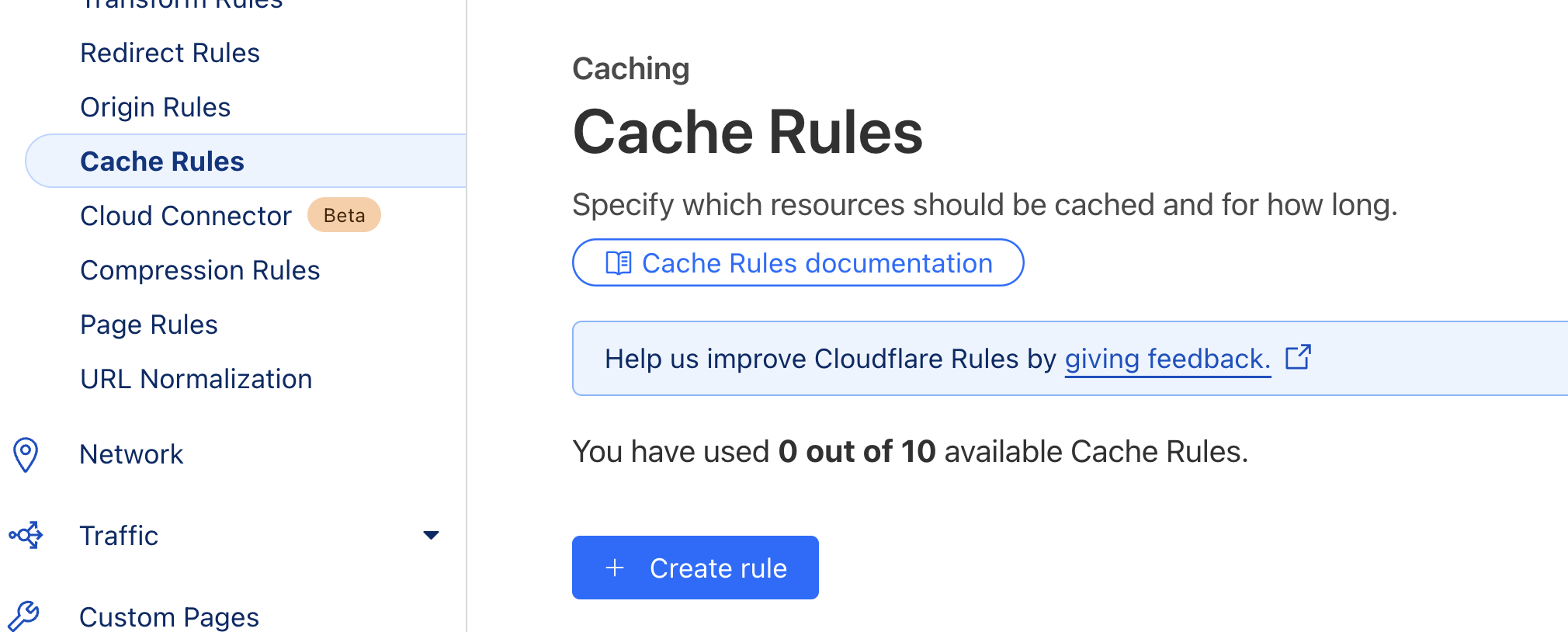
Cloudflare Free Tier Configuration
Cloudflare offers a robust free CDN service with caching capabilities. After adding your site to Cloudflare:
- Configure Caching Level: Set to "Standard" for dynamic content or "Aggressive" for static sites
- Browser Cache TTL: Set to "1 month" for optimal performance
- Always Online: Enable to serve cached pages during server downtime
- Auto Minify: Enable for CSS, JS, and HTML
- Development Mode: Temporarily disable when making frequent changes
Step 5: Advanced Caching Techniques for Maximum Performance
Implementing HTTP/2 Server Push
HTTP/2 Server Push allows servers to send resources to the browser before they're explicitly requested. Add to your .htaccess or server configuration:
# HTTP/2 Server Push for critical resources
<IfModule mod_headers.c>
  # Preload critical CSS
  Link: </wp-content/themes/yourtheme/css/critical.css>; rel=preload; as=style
  # Preload critical fonts
  Link: </wp-content/themes/yourtheme/fonts/primary.woff2>; rel=preload; as=font; crossorigin
  # Preload hero image
  Link: </wp-content/uploads/hero-image.webp>; rel=preload; as=image
</IfModule>
Cache Warming for High-Traffic Sites
Cache warming pre-generates cache for your most important pages to ensure fast responses even during traffic spikes. Create a simple script:
#!/bin/bash
# Cache warming script for WordPress
URLS=(
  "https://yoursite.com/"
  "https://yoursite.com/blog/"
  "https://yoursite.com/services/"
  "https://yoursite.com/products/"
)

for URL in "${URLS[@]}"; do
  echo "Warming cache for: $URL"
  curl -s -o /dev/null -H "Cache-Control: no-cache" "$URL"
  sleep 2
done

echo "Cache warming complete!"
Schedule this script via cron to run every 30 minutes for constantly updated sites, or after each content update.
Step 6: Monitoring Cache Performance and Maintenance
Implementing caching isn't a "set and forget" process. Regular monitoring ensures your caching strategy remains effective as your site evolves.
Essential Monitoring Tools
Google PageSpeed Insights
Analyzes caching headers and provides specific recommendations for improvement.
GTmetrix
Measures actual load times with detailed waterfall charts showing cache hits/misses.
WebPageTest
Advanced testing from multiple locations with caching-specific metrics.
Establishing a Cache Maintenance Routine
- Weekly: Check cache hit ratios in your hosting control panel or Redis/Memcached monitoring
- Monthly: Run comprehensive speed tests from 3+ locations to identify degradation
- After Updates: Always purge all cache layers after theme, plugin, or core updates
- Quarterly: Review and adjust cache TTL values based on content update frequency
- Biannually: Audit entire caching strategy against current best practices
Troubleshooting Common Caching Issues
Problem: Stale Content Being Served
Solution: Implement cache busting through versioning: style.css?v=20250124 or use file hashing. Ensure your cache invalidation logic triggers on content updates.
Problem: Logged-In Users Seeing Cached Pages
Solution: Configure your caching system to bypass cache for logged-in users via cookies. In WP Rocket: "Cache" tab → "User Cache" section → enable "Separate cache files for mobile devices" and disable caching for specific user roles.
Problem: Dynamic Elements Broken by Page Caching
Solution: Use AJAX for dynamic elements or implement ESI (Edge Side Includes) if your caching system supports it. Most caching plugins offer exclusion areas for dynamic content.
Problem: CDN Serving Outdated Content
Solution: Implement cache tag purging or use the CDN API to programmatically purge specific URLs when content changes. Cloudflare offers "Cache Purge Everything" for emergencies.
Real-World Performance Impact
To illustrate caching's practical impact, here's data from a case study implementing the strategies outlined above:
| Metric | Before Caching | After Caching | Improvement |
|---|---|---|---|
| First Contentful Paint | 3.2 seconds | 1.1 seconds | 66% faster |
| Largest Contentful Paint | 5.8 seconds | 2.3 seconds | 60% faster |
| Server Response Time | 850ms | 120ms | 86% faster |
| Bandwidth Usage | 1.2TB/month | 380GB/month | 68% reduction |
Caching Implementation Checklist
- Browser caching configured via .htaccess with appropriate TTL values
- OPcache enabled and optimized in php.ini
- Redis/Memcached installed and configured for object caching
- WordPress caching plugin properly configured (if applicable)
- CDN integrated with proper cache purging mechanism
- Cache warming implemented for critical pages
- Monitoring tools configured to track cache performance
- Cache maintenance routine established
- Troubleshooting procedures documented
Final Thoughts
Implementing a comprehensive caching strategy is one of the highest-impact optimizations you can make to your website. The techniques outlined in this guide from browser caching to advanced server-side implementations can transform a sluggish site into a speed demon that delights users and search engines alike.
Remember that caching isn't a one-size-fits-all solution. Start with browser caching and basic server optimizations, then progressively implement more advanced techniques based on your specific needs. Monitor performance continuously and be prepared to adjust your strategy as your site grows and evolves.
Key Takeaway: The best caching strategy is the one that's properly implemented and maintained. Don't let perfection be the enemy of progress even basic caching implementations will yield significant performance improvements that directly impact your bottom line through better SEO rankings, lower bounce rates, and higher conversions.